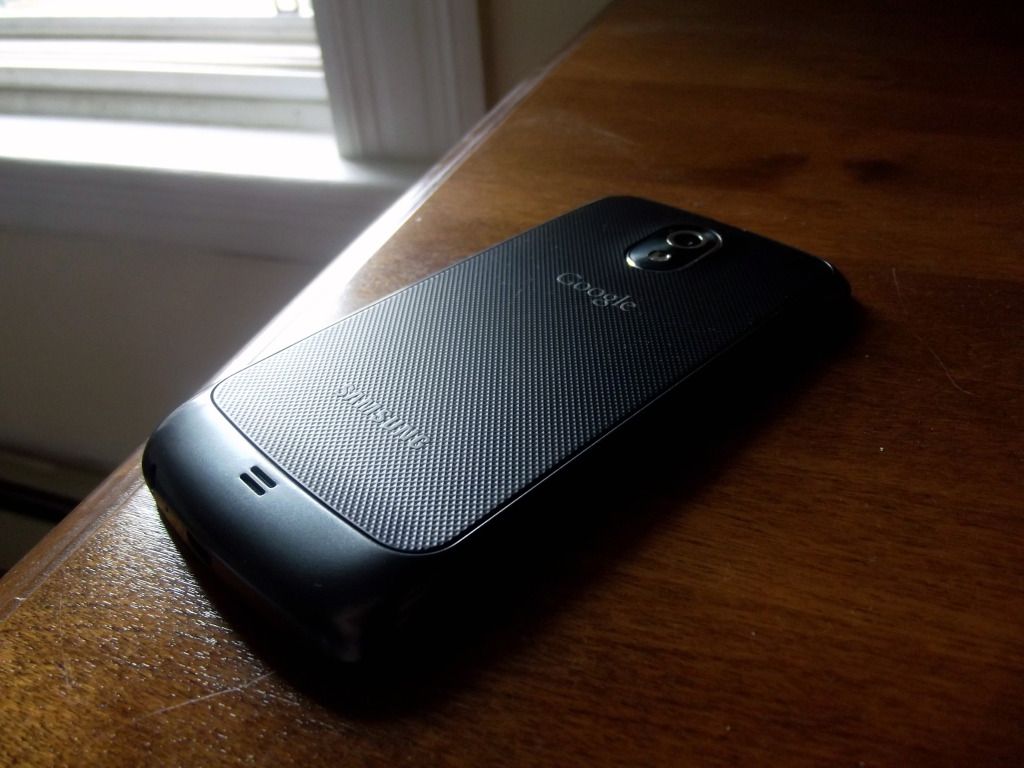
The Nexus 7: My Review


I originally purchased the Nexus 7 during launch, jumping on the slightly cheaper 8GB model. Since release, the 8GB model has been discontinued, and it's spot taken by the 16GB model, and a 32GB model was introduced.  I believe in the time I've owned it, I've formulated a pretty fair assessment.

Background

With the release of the Nexus 7, a new era of cheaper tablets was ushered in. There were always cheaper tablets available, but this was truly the first really good, cheap tablet. I couldn't help myself. The Transformer I had was pretty much sitting and gathering dust. Although the features of the Transformer were awesome, Tegra 2 was aging, and the unit was a bit heavy and awkward. Overall, the Transformer felt like a pretty beta product. I knew for a long while I wanted to replace it, but I didn't have any good options out there. Sure, there were lots of 7" tablets, like the Playbook, and the Galaxy Tab Plus, but I just knew I needed to wait for something better. And it really did come along.


The Hardware: Overview And Opinions

The Nexus 7 is an awesome little tablet. Though construction is mainly plastic, it still feels like it's worth every penny paid. The front of the tablet is consumed by a wonderful 1280x800 7" IPS display, which compared to other tablets of the same screen size on the market is a decent bump in resolution. A lot of people found the bezel surrounding the screen to be a bit much, but I find it's great for holding the unit, as you don't need to worry about accidentally touching the screen or obscuring something on the display. Above the 7" display is a basic 1.3mp shooter, used for Google+ hangouts. Like all current Nexus devices, there are no hardware buttons on the front face, instead being replaced by on screen buttons. Like the Galaxy Nexus, when the screen is off, it's basically a black glossy slate. Surprisingly, there's no notification light on the unit, which I don't really like. Heading down to the bottom of the device, you'll find the standard MicroUSB port, along with the 3.5mm headphone jack. On the left side of the device are the 4 pogo pins for the optional dock and a mic, the top has another mic, and the right side has the power and volume buttons. The back of the unit is a nice soft touch rubber like material, with the Nexus and Asus logos adorning it. Near the bottom, there are some decent stereo speakers, which are surprisingly full and loud for a tablet.

For a $200 tablet, it's specifications are pretty good. Powering the device is a very quick 1.3GHz quad core Tegra 3, with a generous 1GB of RAM. It also has 8GB of on board storage, with 5.92GB usable after the operating system. Like other Nexus devices, there is no expandable memory, so I'm stuck with the 8GB unless I want to replace the unit. Connectivity includes the standard suite of Bluetooth 3.0, NFC, and 802.11 /b/g/n wifi @ 2.4GHz. Rounding out the unit is a 4325mah non-removable battery.

Build quality is really good, like most other Nexus devices. Despite the unit being mostly plastic, it still feels like it's a quality product. This isn't to say there weren't issues. Most units have a slight glass lift on the left side, which, although unnoticeable on casual inspection, may cause those who are picky with their devices to be a bit disappointed. My unit does not display a lot of glass lift, with the glass being mostly flush with the edge. The overall size of the tablet is great too, being a very nice companion device. I can comfortably hold it in one had for reading, unlike the Transformer. This is thanks to the weight, and the nice grippy back. It doesn't feel awkward.

The screen is very nice and bright, but can also drop down to a nice low level for reading in the dark. The IPS display has awesome color reproduction, and good black levels. The viewing angles are great. My unit has no dead pixels, which I'm very thankful for. I have the same opinion on the on screen buttons, thinking it really is the way to go vs hardware. Capacitive buttons can die or seem to lose effectiveness over time, which I found happened with my Desire Z. No notification LED is a bit of a drag, but it's not a deal breaker having to turn on the screen to check notifications. In most cases, if my phone is flashing, I know my tablet has the same notification.

For what it's used for, the camera is pretty good. It's clear enough for Hangouts on Google+, and that's all it really needs to be used for. I find a rear facing camera on a tablet is pretty useless, so I was pleased to see there wasn't one on the Nexus 7. The thought of pulling a tablet out in public to take pictures makes me cringe. You have phones, or point and shoot cameras for a reason.


The processor and GPU are very pleasing. Seeing something as powerful as Tegra 3 in such a cheap device is awesome. Multitasking is a breeze thanks to the 1GB of RAM and the quad core, and I haven't really experienced any slow downs or stutters. The only game I've had issues playing would the GTA Vice City, and even then, turning down the settings makes it playable. The 8GB of internal storage is enough for me. Like I said earlier, I really do use a lot of cloud services, so I don't need to have on device storage. The main thing taking up space on it right now is games. That is really the only bad thing about 8GB. With newer games coming out that are larger and larger, you almost need to uninstall those that aren't being used at the time. All of my books, magazines, video, and audio are streamed, so for those purposes, 8GB is fine. Connectivity works well, playing with Android Beam between my Galaxy Nexus and Nexus 7 is fun, being able to send web pages to and from devices is simple. With more people getting Nexus devices, or even more Android phones implementing it, I could see it as an easy way to share data. Part of me wishes I waited for the 4G version. Maybe that'll come in the future. I could see it being a lot more useful having data anywhere.


Software: Overview And Opinions


My Nexus 7 is currently running Android 4.2.2, the latest version of Jelly Bean. Jelly Bean was introduced on the Nexus 7, and brought some neat features to the table, the main ones being Project Butter and Google Now. It's definitely a unified operating system now, with design being very similar between my phone and tablet. Like Ice Cream Sandwich, everything is nice and clean, with the Holo theme being implemented everywhere. Project Butter works well on both my phone and tablet too, offering a big boost in responsiveness. This is achieved through VSync timing, triple buffering, and matching touch inputs with the VSync. It also offers nice boosts in processor speed when it detects a touch, making the entire interface fly.


Google Now is pretty awesome, and something I use daily. It has been steadily improving since release, and will keep getting better. It's pretty location aware, so if you're walking past a bus stop it'll give you departure times, it can update you on your favorite sports teams, show you the weather, give you movie times, etc. Very handy tool for quick information at a glance. It also includes an awesome voice search that works really well, and talks to you for a lot of inquiries. This is similar to Siri on the iPhone, but considerably faster. (Seriously, I've tried it vs a friend's 4S. It's speedy).


Notifications have also improved with 4.2. They're expandable and actionable. One can share directly from the notification bar. There's also a quick toggle option too, which is a nice addition to the notification bar. On my phone, swiping down with 2 fingers shows it, or there's a little icon that flips over from standard notifications to the quick panel. With the tablet, swiping on the left side of the notification bar gives you standard notifications, swiping on the right gives you quick toggles.

Battery life is pretty good. I generally use the tablet in the kitchen when I'm cooking or baking to display recipes, or I'll read magazines at work, or browse/watch videos in bed or in the living room. Google rates the device at about 9 hours of continuous video playback, however, I haven't been able to test that. I'm assuming it could do that pretty easily, but for day to day use, it generally gets about 3-4 hours of screen on, with days of idle time in between. I'm pleased with the results, considering it's completely stock, and if I were to use it for a full day, I'd probably see about 7 hours+ screen on time.

Google Support and RMA

It was my unfortunate experience that my first device quickly bricked after about a month of use. I hadn't done anything to it, I didn't even unlock it, but one day it just completely locked up. After soft booting the unit, it got stuck on the Nexus loading screen. Anything I tried resulted in the same problem, even a complete flash of the stock OS. Quickly re-locking the bootloader, I contacted Google, and was assisted by a great rep named Andrew. It was quickly determined that nothing we could do over the phone would solve the problem, so he arranged an advanced device replacement. They shipped me a new unit, and provided me with shipping labels for the old one. Everything was handled in about a week from contacting Google, so I have no real complaints. Service was great, warranty support was awesome, and the new device has been working flawlessly since receiving it.

Conclusion

The Nexus 7 is Google's first foray into the tablet market with a Nexus device, and they did well. The Nexus 7 is priced to move, and has the specifications of a tablet twice it's price. It was really a smart move by Google to push it out, as it's a great way to push their services into more hands, and at a price consumers can't resist. Pushing it at that price point shows that quality devices can be had for cheaper, pressuring more companies to produce cheaper, high quality products. It's realistically a win for both Google and the consumers. As for me, the Nexus 7 has solidified my opinion on the Nexus series of devices, and I don't think I could buy anything but a Nexus from now on. This is really a full featured tablet, and would be an awesome compliment to anyone's day to day life.

Back to stock

A while ago, with the release of Android 4.2, I decided I wanted to try it out on my Galaxy Nexus. I was also extremely lazy at that point in time, and decided it was a really good idea just to dirty flash 4.2.1 over my 4.1 install. Everything was great, phone worked fine, but I found that performance was spotty. Some of the issues included connection speed dropping, making it unbearable to stream Rdio, interface lag, and poor battery life. Silly me put that to issues with 4.2, and my Galaxy Nexus being slightly outdated, but that all changed last week after a backup and clean flash.

Realizing that I had probably made a mistake dirty flashing the phone, I did my duty and backed up my text messages, then played around with fastboot. After downloading the stock 4.2.1 image from the Google developers page, and some platform tools for fastboot from eFrant’s back to stock instructions on the XDA forums, I was back to a fully clean stock experience. Well, I did have a bit of a hang up with driver installs, but all in all, I was back to where I should have been in about an hour. A few days later, I got the OTA for 4.2.2. All is well.


The best part about being back to stock is all the fun stuff that actually works now! The camera is quick again, the interface is nice and smooth, and along with that, Google Now actually works! I was amazed to see movie times posted the other night for my local theatre, and that there are weather notifications in my notification bar. Battery life is once again awesome. I did a whole 2+ hours of screen on time with the stock kernel, which I think should be considered a basic benchmark for any phone I own.

Speaking of kernels, Ezekeel is back from a long hiatus. He was off recovering from a broken leg, followed by a very hectic work schedule. You’ll probably remember me mentioning his work; the GladOS kernel, from back in my Galaxy Nexus review. I’ve been running GladOS on my Nexus for the past few days, and I’m actually a bit disappointed this time around. I don’t find it handles idle and low signal areas great, even though any screen on time is awesome. For instance, I had 35 minutes of screen on time this morning after waking up, and my battery only drained to about 90%. I also find there’s a little bit more lag with this compared to the stock kernel, however, I’m going to leave it for a few more days to see how things go.

I still do feel the Galaxy Nexus is aging. It’s been an awesome phone, and it’s treated me great. I’ve had the opportunity to discover a lot about Android and the phone community with it, and for that, I’ll probably always remember it. I do feel it’s getting close to the time to replace it. The Nexus 4 was released, and I can’t help but salivate over a phone with those specs, especially one that’s practically the same size. I won’t go into detail, as I think I’ll save those for an eventual review. Suffice it to say, my next device will definitely be a Nexus, and it’s probably going to be the Nexus 4.

New PC


Well, not a new computer for me, but instead a new machine for the girlfriend! My brother decided that he no longer has the time or desire for PC gaming, so I put in an offer, and he accepted. His rig is the same one I helped build over the years. Hell, I remember when it was an Athlon x2 and an 8800GT. Those were the days. Anyway, below are the specs:
Intel Core i5 750 w/ Noctua NH-U12P
Gigabyte P55M-UD2
4GB Mushkin Silverline Stiletto DDR3 RAM
Gigabyte Radeon HD6850 Windforce edition
150GB Western Digital Velociraptor
Coolermaster HAF912 w/ 4x Yate Loon 120mm
Antec Earthwatts 430w PSU
22” Samsung 1080P LED LCD
Logitech G110 keyboard + G500 mouse

Overall, it’s a pretty well rounded machine with a fair bit of gaming potential, even in this day and age. It’s a little light on the RAM side of things, but for what the girlfriend is playing/doing, it shouldn't be an issue. I was absolutely surprised by the feature set of the motherboard. For being a UD2 board, and using the mATX form factor, it’s a pretty loaded board. Looking through the BIOS settings revealed a lot of potential for overclocking.

The only thing we didn't like about adding the machine to the apartment was the inability to run a length of CAT6 to it. Unfortunately, the path between the router and the living room has a doorway in the way, making it undesirable to run. Connecting it wirelessly has been a pain, as we've had to rely on my Alfa USB wireless adapter. Although the adapter is great for what I use it for (Great for Backtrack), it doesn't seem to perform quite as well under Windows. Time will tell what we end up doing with the machine. The girlfriend will keep using it for another month or so, and if we find she isn’t using it enough, I’ll get to re-purpose it into something else. (Virtual platform anyone?)

The Yeti by Blue: Awesome USB Microphone


In a further search to improve my hardware, and the possibility of a new hobby consisting of podcasting and commentating, I searched for one thing that would vastly improve the quality of the content I will eventually be creating. Recording gameplay video is no big deal, however, when it comes to the audio portion, my little Zalman clip on microphone just wasn't cutting it any more. A few quick peeks around some electronics retailers netted me the Yeti for about $130 after tax, and so far, I'm happy with the purchase.

The Yeti weighs in at about 1.5 kilos, and stands approximately a foot tall when extended in the stand. As you can imagine, this thing is built to last. The entire construction, minus the knobs and buttons, is metal, with retro chrome accents. Moving it around is a bit of a pain, but it's hard to topple. The device feels like it's worth what I paid for, which I believe is really important. The base is padded with a bit of foam to reduce vibration, and also acts as cable management. I find the foam doesn't deaden my typing or my mouse movements, so I may see about moving the Yeti to an arm or a stand.


On the front of the Yeti is a button for mute, and a knob for volume control. The mute button is a bit confusing at first, when the light is blinking, the microphone is muted, when it's solid, it's live. It makes sense now, however, I think I would have liked a simple on/off for the light. Off if it's live, on if it's muted. The volume control is for the built in headphone amplifier, which allows you to monitor without having to run more cables. I think this might be nice if the computer you're plugged into is located away from the microphone, and you're dealing with a shorter set of headphones, but I haven't used it as of yet as the Yeti is just on my desk, and the cable for my HD555s is rather long.


On the back of the Yeti are two more knobs, the top one controlling gain, which I don't believe has to be played with all that much in my setting, and the bottom one controlling the pattern. The Yeti uses a tri capsule array, which consists of three condenser microphone capsules. This allows the Yeti to record in many different situations, by differing the recording power of different microphones in the array. The four recording modes are:

  • Stereo: Great for vocals, choir, and instruments. Records mainly from the left and right of the mic.

  • Cardioid: Great for vocals, podcasts, instruments, and voice overs. Records from the front of the mic.

  • Omnidirectional: Best used for conference calls, field recordings, or large events where you want to capture everything. Records all sides equally.

  • Bidirectional: Great for interviews, instruments, and vocal duets. Records from the front and the back of the mic.

The mode most often used by myself is Cardioid, as I find it gives the best sound quality in the scenarios I use it in.


The bottom of the Yeti houses the Mini USB port, the 3.5mm headphone jack, and a threaded port for a microphone stand. All power for the Yeti is provided strictly through the USB connection, making it compatible with a wide range of devices. Operating system support is great, with plug and play working fine with Windows Vista and 7, along with Mac OSX. The headphone jack should power any consumer headphone fine, with an output impedance of 16 ohms, and an output power rating of 130mw. The threaded port for the microphone stand is standard size, so it should fit just about any stand on the market.

Overall, really pleased with the purchase, and hoping the Yeti will be able to follow me into the future, and help me create some awesome content. This mic comes highly recommended, with my only complaint being that it picks up noises through vibrations on my desk. Whether it be used for just online gaming, or content creation, anyone looking to step things up in the audio recording department should look at the Blue Yeti.

I hope to update this in the near future with a few audio samples.

UPDATE: Audio sample

[soundcloud url="http://api.soundcloud.com/tracks/80633317" params="" width=" 100%" height="166" iframe="true" /]


Things I like: Rdio

Rdio is a multi platform music streaming application, designed to make managing your music collection easier.


I used to have a vast collection of lossless music, taking advantage of the extremely large storage space available to the iPod Classic line. Coupled with my Etymotic ER6i earbuds, I was in audio heaven. Obtaining a smart phone however, made things a bit different. No longer did I want to carry around a second device solely for music, and my smart phone didn't play back ALAC files, and didn't have the storage space for them either. Although I kept my music, I ended up selling the iPod and the Etymotics, and dealing without music on the go for the longest while. I however decided to give it another try, grabbing some new Etymotics, the HF2s, and playing with playlists that would fit on my phone. Re-encoding was a pain, managing playlists was a pain, and dealing with different players was a pain. I'd have to go through my entire collection, pick out which songs I wanted on my device, re-encode them to 192k MP3s, then move them via USB to the device. You can imagine that this could be an extensive undertaking, and most people would have just given up and purchased an iPod and dealt with having another device solely for music.


Mid 2012, after getting tired of the playlist management, I looked at other alternatives. Rdio seemed rather well received, and although I wasn't a fan of spending per month just for my music, it was quickly justified when looking at what I would normally spend on an album, followed by what would have to be done to have that new album loaded onto my device. With the cogs moving in my head, I quickly signed up for the 7 day trial and fell in love. For once, the music on my desktop was all accessible from my phone. Hell, it was accessible from anywhere I wanted it. This was a revelation. Rdio ended up showing me that I really couldn't tell the difference between an ALAC encoded song and one streamed from their service, which as far as I know, is encoded in MP3. Even with my accurate HF2s and Sennheiser HD555s, I really couldn't tell a difference. Adding new songs was as simple as searching for the artist and clicking the plus sign. Making playlists was simple, and there are even some social networking aspects, with the ability to follow other listeners and artists, subscribe to their playlists, and discover new music.


Rdio wasn't without it's bumps however. Initially the Android app was fairly buggy. I ended up getting 2 weeks of free service out of them for a bug which caused the app to stop playback after 3 songs. It's still not a perfect solution, but they're constantly working on it, adding nice features, like collection shuffle, a smoother user interface, and the ability to use the mobile app as a remote control. Overall, it's been pretty bug free for the past little while. The only real disadvantages to the service would be with the data usage for streaming, and the inability to stream with no network connection. Although I don't find it uses ludicrous amounts of battery, it definitely does make use if my 6GB of data from Bell. I stream music for at least half an hour a day, 5 days a week, and with the high quality setting, I can see Rdio using about a gig of data on its own. Coupled with my regular browsing and streaming habits, I can see that 6GB creeping up rather quick. Those of you without good data plans can make use of offline sync however, storing playlists on your device for playback without a network connection. This also mitigates that issue with poor/no signal quality.

Just last month, I removed all of my local music from my computer. I uninstalled iTunes. It feels good. All of my music, plus more than I could ever want, now lives in the cloud, and I'm satisfied again.

Desktop Background Update


Thought this looked pretty cool, figured I'd post it. Thanks for the heads up on the wallpapers, Victor. Due to my screen layout, there was a bit of tweaking to do to the image, I had to split it in the middle and move it around, but it turned out pretty good.

File Server Plans


Once again I feel the need... The need for more storage space. And with more storage space comes newer, better, more exciting hardware! So my current file server build is pretty basic, something just hobbled together from spare parts.

  • Intel Pentium Dual Core e5200

  • mATX Gigabyte LGA775 board

  • 2GB DDR2

  • 1x1TB+1x2TB in spanned volume (I know, I’m bad)

  • Couple of 2.5” drives for OS and download caching

  • 350w Sparkle power supply

I’m honestly surprised the thing has lasted this long without a drive failure. My luck while typing this, a drive would fail. So, we’re going to address the weak points in my current server build with the new one.

Power consumption

The current server consumes a fair bit of power. The processor really isn’t horrible power wise, but it is a 65w TDP, and it’s running on an older, more power hungry chipset. This is going to be remedied by a much more powerful, more efficient processor, the Intel Core i3 2120T. This is a dual core processor running at 2.6GHz, however, it’s a newer more energy efficient process, with a TDP of 35w, and by benchmarks, is about twice as powerful. The poweful part could easily be due to the included hyperthreading, but a lot of it just comes down to a better overall build process and more efficient transistors. The i3 2120T will find itself at home in my new file server build.

Expandability

The current file server is running on an mATX board which only has 2 DIMM slots, which would be alright, if they took DDR3 memory. The cost of DDR2 is practically outrageous compared to DDR3, and even compared to ECC DDR3. Sure I could populate it with 8GB of DDR2, but that’s as far as it would go. Not only that, but without ECC, one is looking at the possibility of running into errors while processing, which can lead to corrupted files. Another major limitation with the board is the minimal number of expansion slots. One can only do so much with a single PCI-e x16 slot. The board also has fairly limited I/O options, including the serviceable, however, not ideal, Realtek NIC. The final major limitation on the board is the limited number of SATA ports. The board only has 4 making an expansion card practically a necessity. Although an expansion card will be put to use in the new server, it’s not a necessity off the bat, so I can hold out on purchase until required.
For the new motherboard, I chose a SuperMicro X9SCL+-F. This board is extremely flexbile, with some great features to boot. It’s an mATX format with 3 PCI-e x8 lanes, 6 on board SATA ports, IPMI for KVM over LAN, dual Intel Gigabit NICs, an onboard USB port for OS installs, and 4 DIMM slots that accept only ECC DDR3. The board should be rock solid in this regard, serving up lots of usability niceties. Hell, with IPMI, I will only ever have to have ethernet and power hooked up. I may still go with a Tyan S5512WGM2NR, due to the onboard LSI 2008 RAID controller, which, when flashed with IT firmware, would provide 14 usable SATA ports to the server. It also includes triple Intel based LAN, providing even more interfaces for higher bandwidth applications. This however, is probably more trouble than it’s worth in my case, so I will more than likely stick by the SuperMicro board.
For drives, the server will be running pairs of 3TB drives in RAID 1. It will start with 1 pair, allowing for 3TB of usable storage space, and when adding another pair, I will stripe with the existing pair, allowing for a RAID10. This should increase performance while still maintaining a much higher level of redundancy than my current spanned volume. Once I get to the point where I run out of on board SATA ports, I will add a port expander, possibly a SuperMicro AOC-SAS2LP-MV8, which would allow a further 8 drives to be connected. Ideally at some point I would be adding an SLC SSD for a ZIL cache, along with more RAM as well for a larger ARC cache.

That about covers how I’m going to make up for the downsides of the current server, as for the rest of the parts, I believe I have decided on them. For a case, I figure a Fractal Design Define R4 will be more than adequate for what I want to do for storage, however, a Fractal Design Define XL may also be considered due to the extra 5.25” bays, along with the 2 extra 3.5” bays. The fractal cases look absolutely beautiful, and are designed for silence and good cooling. The 3.5” bays all have rubber gromets attached too, to limit hard drive vibrations, and all vents either have the option of being blocked, or include a dust filter to keep things clean.
As for a power supply, I haven’t quite decided on what model, however I am leaning toward an Antec Earthwatts power supply. I have never had any trouble with Antec supplies, and it should be enough to provide the power required for the server. Ideally, it will be a platinum model, to further cut down on power usage.
For hard drives, I’m leaning toward Seagate 7200RPM drives for the cost to performance ratio, as the 3TB models normally go for around $130. I haven’t had any trouble with the Seagate drives that I have purchased in the past, so I have no reason to believe it will be any different this time around.

The final build should look like this:

  • Intel Core i3 2120T

  • SuperMicro X9SCL+-F

  • 16GB ECC DDR3

  • 8x3TB drives in RAID 10 for 12TB usable or 10x3TB drives in RAID 10 for 15TB usable

  • 20GB Intel SLC SSD for ZIL cache

  • 650w Antec Earthwatts modular

  • Fractal Design Define R4 or Fractal Design Define XL

  • OpenIndiana installed to 16GB USB thumb drive on internal USB header.

Over the process of the build, the server will basically bump up by 3TB intervals. The bump for 6TB will also bump the RAM to 8GB, and the bump to 9TB will then bump the RAM to 16GB. I’ll add the other drives as needed then.

That about covers the file server. I’ll be sure to add any hardware updates and whatnot as more parts roll in. I’m hoping to have everything going by Christmas, and ideally at least a functional testbed without drives by the end of October. In future posts I’ll also be logging a virtual server build, and a possible desktop upgrade. And guess what? There’s some more reviews around the corner!

Stay tuned.

The Galaxy Nexus: My Review


It’s been about 2 months since I replaced my slightly aged HTC Desire Z with the Galaxy Nexus, and in this time, I’ve formulated what I believe to be a fair assessment of the device.

Background

With my HTC Desire Z starting to fall behind a bit in terms of speed and features, I decided to look into replacements. For a month a analyzed what was available on the market, narrowing it down to two phones. Those two phones being the Samsung Galaxy Nexus, and the Samsung Galaxy S II. The big things going for the Galaxy S II were the better camera, and the slightly better processor/GPU configuration. The Nexus ultimately won it over for me though, as there are some things that peeved me about the S II.

  • Still stuck with Gingerbread at the time. I was definitely anticipating Ice Cream Sandwich.

  • Even when upgraded to Ice Cream Sandwich, the interface would remain largely the same due to the evil known as Touchwiz.

  • The screen was a lower resolution in comparison to the Nexus.

So, I purchased the Nexus. And I’m happy.

The Hardware: Overview And Opinions

The Nexus is a beautiful phone. Construction is mostly of plastic, but I definitely find it to be of high quality. Adorning almost the entire front of the phone is the gorgeous 4.65” 1280x720 Super AMOLED display, along with a 1.3MP shooter for video calling and quick pictures. Since Ice Cream Sandwich was designed with on screen buttons in mind, there are no capacitive buttons on the front. When the screen is off, the phone basically looks like a glossy black, slightly curved glass slate. Below the display is a multi color notification LED that is only visible when active. On the bottom of the phone is the microUSB port, a microphone, and the 3.5mm headphone/mic combo jack. The right side of the phone houses the 3 gold connectors for pogo docks, and the power button. Along the left side of the phone you’ll find the volume rocker, and there is nothing on the top of the device. The back of the phone is home to the extremely fast 5MP shooter with LED flash, and on the slight bump near the bottom there is a second mic for noise cancelling. The back plastic cover is textured to provide a decent grip even in a sweaty palm, which I find holds true.

Inside the phone you’ll find a TI OMAP 4460 chipset with a 1.2GHz Cortex A9 dual core processor and a PowerVR SGX540 GPU clocked at 308MHz. The phone also runs on 1GB of RAM, and 16GB of internal memory. There is no SD card slot expansion. Connectivity includes a pentaband radio, Bluetooth 3.0, Wifi 802.11 A/B/G/N, NFC, and GPS. Powering the device is a 1750Mah Lithium battery.

Build quality seems really good, even though it is constructed mainly of plastic. It’s a lot thinner than my HTC Desire Z, which actually makes it feel smaller in my pocket even though it’s a much larger phone. It didn’t take me too long to get used to the size, and as it stands right now, the 4.65” display is just perfect for my hand. The slim build and slight curve helps it too, as if it was any thicker, it might be considered a bit unwieldy.

The screen is gorgeous, as stated above. Colors are nice, blacks are really deep, and response time seems great. It’s also very viewable in sunlight. This is all a big thanks to the Super AMOLED technology in the display. The display isn’t true RGB, as it runs off a pentile matrix, however, at the extreme screen resolution of the Nexus, image quality and sharpness don’t seem to suffer like in most lower resolution pentile displays. Having no capacitive buttons on the front is really nice as well, as I found with my Desire Z, the buttons could be a bit fiddly at times. The multicolor notification LED is a great feature, as I can set color based on the application, allowing me to know what kind of message I received before even activating the screen.
Headphone jack and power button placement were a bit weird at first, but I quickly got used to them, and they’re more ideal. Having the headphone jack at the bottom is logical, as that’s how I pull my phone out of my pocket, bottom first. The power button on the side makes for easy access too, as it’s pretty much where my index finger would lay when using the device.

Both cameras seem to function well. The 5MP shooter on the back is really fast, and the flash seems to work alright. In practice, the camera will take photos as fast as you can press the shutter. I believe this is more to do with Ice Cream Sandwich than the camera sensor though. The low light performance isn’t great, however, understandable for a phone. Well lit pictures are absolutely beautiful. Very good color, nice sharpness.


The processor and GPU in the phone seem to be a good fit. Although I do find the phone can get a bit warm with prolonged usage. Everything I need to do is done quickly, with almost no slowdowns. The 1GB of RAM is plenty enough for any multitasking that needs to be done, and again, even when doing multiple things on the phone, I notice no real slowdown. The 16GB of internal storage space was almost a dealbreaker for me, however, after owning the phone, I found I could whittle down my music collection to my most listened to songs, re encode them, and change it up every now and then if things started getting old. Worst case scenario, I have access to everything available on my Subsonic server anyway.

The radios on the phone seem to be good. Reception is never an issue. The phone being pentaband also means I can take it to almost any carrier in the world, as long as they use SIM cards. It’s truly a world phone. Wifi is strong on both the 5GHz and 2.4GHz N bands of my WNDR3700N, providing excellent download and upload speeds. GPS seems good from what I’ve used it for, locking on quickly, and maintaining an accurate location. NFC will be absolutely awesome once Google Wallet legitimately comes to Canada. I cannot wait to use my phone instead of my credit card.

Battery life is purely dependant on software running the phone, so I’ll touch on that once I finish my opinions on the software side of things.

Software: Overview and Opinions

The operating system running this phone is what was the much anticipated Android 4.0, Ice Cream Sandwich. Ice Cream Sandwich is essentially a merging of 2.3 Gingerbread and 3.0 Honeycomb, to create one unified OS for both tablets and phones. Design elements are really refined from previous versions. The Holo theme is absolutely gorgeous. It uses very simplistic design elements, with a lot of symbols and clean lines. The Google applications and widgets follow this theme really well, making the entire phone interface look spectacular.

4.0 brings GPU acceleration to the table. With Gingerbread, all rendering was done by the processor, which could make for some less than appealing stuttering and lag when navigating the phone and various applications. With Ice Cream Sandwich, the entire UI is rendered using the GPU, making for an extremely smooth experience. Although Google allows applications to be GPU accelerated as well, some are not. This can be remedied using the developer options that force GPU rendering on all applications.

More nice features added with Ice Cream Sandwich are improved multitasking with a new task switcher/manager, Android Beam, which allows you to send links to another ICS phone with NFC, responding to calls with text messages, and built in photo editing.

I won’t go into detail on any of the applications, as by now, many other reviews have covered the changes in many of the apps, but suffice it to say, everything is a lot shinier and more usable than what it was in Gingerbread. All of the base Google applications are overhauled to be more user friendly, and take advantage of the new, slick holo theme. It just makes everything easier to use and navigate.

Of course, this being a “developer phone”, it’s extremely easy to unlock and modify. For this reason, I’m not running the stock ROM or kernel. My ROM of choice at time of writing is AOKP Milestone 4, coupled with my kernel of choice, GladOS by Ezekeel from Rootzwiki. I find these two modifications add just the little bit of extra control I like to have in my phone (Mainly notification bar toggles and some visual changes from AOKP, and the better battery life, audio/screen mods, and charge limiting from GladOS). So, I suppose this is more from my experience with this software installed on the phone.

The software is great. Coming from CyanogenMod 7.1 on my Desire Z, it just feels a lot faster. Moving between applications is much quicker, opening the camera app is faster, music doesn’t lag like it occasionally did on the Desire Z. Although I am a big fan of Swype, they’ve done awesome things with the new ICS keyboard. I’ve been running that for the past week or so and I’ve really enjoyed it. I don’t feel annoyed by the persistent Google search bar on the home screen. In fact, I find it fairly useful.

Soft keys are awesome. I really didn’t like the capacitive buttons on my Desire Z. I don’t mind losing a bit of screen space just to have those nice, modular, persistent buttons on screen. Dropping from the 4 in Gingerbread down to the 3 in ICS simplifies things too. I don’t miss the search button, or the menu button. I like having the task list button available. It makes switching between apps just one step quicker.


Touching on battery life quickly too, I can pretty easily get through a day of average use with the stock 1750mah battery. I rarely use wifi anymore, however, when I did, the best I managed for screen on time was approximately 3 hours with 5% remaining. Depending on what I’m doing, on 4G HSDPA+, I can usually see about 1.5-2 hours of screen on time, with the inclusion of music listening. Very impressed with the battery in the phone. It performs considerably better than that of my Desire Z with similar tasks. I can only assume that it’ll be even better when my extended battery arrives.

Conclusion

The easiest way to describe a Nexus phone is that it’s not really supposed to be an uber powerful awesome flagship device. The phone is put out to launch a new version of Android, and to really give manufacturers a baseline as to what an ideal phone is for the OS. It’s a device designed to spark development. Most importantly though, it’s a piece of hardware designed to just get out of the way and showcase what’s really important, Android itself.  Does the phone do this well? Yes. It does this extremely well. I will be the first to admit the phone isn't the greatest thing on the market. There are a number of better Android devices on the market with better specifications. This phone however, offers something that many manufacturers don't; a pure Google experience, which is exactly what I want when buying a phone. I believe this will be a phone that I will remember for years to come.

Trillian 5 and how it changed my perspective on Trillian and Digsby

Now, if you didn’t know before, I’m a bit of a fan of Digsby. It’s a lovely multiprotocol IM client with social network and email integration. However, it can be a bit… Bloated at times. Before that, I was never really a fan on the Trillian interface. I tried to make the move from Windows Live to Trillian, but it was a no go. Then Digsby came along. It was nice, it seemed fast, and it integrated everything I wanted. I even made my own skin for chat windows, which I’ve been using since I made it over a year ago. However, there are some glaring issues with Digsby. It comes from a younger software developer. It also includes advertising (Although you can opt out. The initial ads were annoying gifs or flash based), and a distributed computing option. I never enabled those, although on new installs, most of those things come enabled by default. Another issue was that Digsby could at times be a bit resource intensive. For someone who used a netbook for a very long while, resources were always very very important to me. I managed though. We also have the issue of dropping messages on less-than-average connections, and finally, it caused a bit of video lag when throwing one of it’s popups. This is even on my machine, which is really no slouch at all.

So, after using Digsby for a while, I was perusing my RSS feeds, and an article on the new and improved Trillian 5 was found of Lifehacker. I started reading into it a bit. It was a lot like digsby now. Awesome. It was built off Windows APIs and coded in C+. That means extremely low memory usage and it looks like a native Windows app. EVEN BETTER. And wait, most of the pro features are now free? Holy crap, let’s just jump on this now. Of course, I decided to purchase both the 1 year pro subscription (now 12 dollars instead of 25), and I also purchased the android application for my phone. Wait, but aren’t most of the pro features free? Why don’t you just stick with that? I know that’s what you’re asking. Yeah, sure, all the plugins are available for free, but because most of the pro features are free, Trillian went ad supported. These aren’t annoying flashy ads though, they’re more soft ads. They scroll seamlessly through your conversation, and you barely notice them. However, the one feature I really wanted for that 12 dollars was the cloud based history backup. It also removed those ads, which really, wouldn’t have been a huge deal breaker. So, with cloud backup, my history is the same on my 3 devices.


Alright, so how is this any different than digsby, beside the cloud backup? A lot. The biggest feature, besides the lower memory usage and looking like a native windows app would be the continuous chat. How does it work? Well, I can be logged into all 3 of my devices at once. My chats follow me seamlessly across my devices, depending on which one I’m using. I can start a chat on my desktop, go out the door, and continue it on my phone, the entire conversation is automatically there. There isn’t any noticeable transition for the person on the other side, and I can see the chat that was previously started on the desktop. It also only notifies the device that’s in use. I’m currently logged in on all 3 of my devices, and it’s only notifying my laptop, which is the device I’m currently on. If I was to pick up my phone and step away from my laptop, I’d only get notifications on that, however, my laptop still maintains the conversation, so if I go back, I can keep talking like I never switched. Cool, right?

I really enjoy the social network implementation that Trillian uses too. It looks a lot nicer than Digsby’s, and it has a lot more features available to them. There’s a lot more under the hood in general too. Tons of automation options are available as well. The only thing that might take me a bit to get used to is the status system. Also, the fact that all of your preferences aren’t backed up online is a bit annoying, and something I’ll really miss from Digsby. I can get over these few little issues when it comes to the speed, memory usage, customizability, and features behind Trillian 5. Goodbye Digsby, it’s been nice knowing you, however, Trillian is my new instant messaging client.

Oh, did I mention Trillian has a web based messenger too? Sweet.

[Trillian for Windows]

Finished! ...Well, sort of.

Alright! Longer time than expected to actually make another post, but hey, that's alright! I ended up finishing Water FTW 1.0 the night of the 16th when I returned home. I really didn't run into any trouble at all, other than the Switech micro reservoir being a bit hard to mount, especially with properly routing the tubing... I ended up getting it done, but the tubing wasn't quite as clean as I had liked. Oh well, it was done. Anyway, here's the first phase, along with all the parts that had been received.


Above is the weekend haul. You can see here, I brought home not only a fair number of shiny fittings and water blocks, but I also have... WHAT'S THAT? 16GB OF DDR3? Oh my. Yeah, I upgraded to 16GB of DDR3, Mushkin Blacklines. All of the fittings were ordered from Dazmode/NCIX, and arrived by Friday! Service from NCIX is normally amazing, but they went above and beyond with these 3 orders to them. The only thing that didn't arrive was the package from Elwoodz, which I was initially disappointed about, but got over it awful quick. Also pictured are the 72 K Cups from Singlecup.ca, my new spot for my coffee fix.  2 boxes of dark roast, a box of medium roast, and a box of jet fuel.


Above are the pictures that I took that actually turned out okay from Water FTW 1.0. As you can see from the first one, it's a bit of a tight fit for the reservoir with the tubing. I only had one leak during the build, and it was actually the fill port of all things. The EK blocks are simply great. Amazing machining, even if the GPU blocks seem a bit rough. I guess seeing finishes like Zalman, or the base of the Supreme HF kinda spoiled me... I was happy with this, but I wanted it to look even better... So off to Dazmode. The results are posted below...


As you can see above, with the dazmode order I decided to add a lovely tube reservoir. This particular tube is the EK Multioption 150 x2 Advanced. It comes with like, 3 holes on the top, 5 on the bottom, 3 tubes for inside the reservoir to reduce cyclone formation, along with an anti cyclone attachment. I decided to go with the tubes.  This really reduced the number of sharp turns, and actually shortened my tubing runs, which was my main goal. My second goal was a usable drain port. Because, holy crap, holding a full HAF 932 over a tub is NOT a fun experience. My drain port is right after the pump, and consists of a t block with a quick disconnect attached to it. The female end is attached to a length of tube, and I keep it for draining. This really does simplify things... A lot.


Picture of the drain port above. The Koolance quick disconnects are simply amazing. really nice build quality to them. You can also see here my pump mounting choice. I decided to zip tie it to the drive cage, with some neoprene from a cheap laptop case acting as a vibration dampener. I can't hear it, and I couldn't really even hear it when I was leak testing. Maybe it's just me, but the MCP355 isn't loud with proper mounting. Definitely not audible over the fans, which are pretty darn quiet as it is.


Upsettingly, I didn't quite have room for the above. This doesn't mean I won't try to fit it in at a later date, but I had to leave this wonderful single radiator out for now. I am, however, very happy with the temperatures I'm getting from this triple radiator. Sadly, the highest I can manage to push the processor with hyperthreading on, while still maintaining good temperatures, is 3.8GHz. I'm partially blaming this on the 16GB of DDR3. At 1.25v in the bios, 1.25v on the VTT, I can manage 3.8GHz, with a maximum temperature of 63 degrees in LinX. That's a 25 pass run with all memory. 4GHz required over .1v more, and shot temperatures up another 10 degrees, if not more. My happy medium is 3.8GHz, as the extra "performance" isn't really worth the heat. I'm very happy with a processor that idles around 22-24 degrees, and has an average load temperature of around 28-30. Even gaming doesn't push it all that far. The maximum temperature I have seen during gaming wasn't even close to the 63 max in LinX on the processor, and the GPU doesn't even hit 50... Oh, and by the way, the GPU idles around 28 degrees. Not complaining there. On the heatsink, it would easily hit 35-40 degrees idle, and I don't think I had ever seen it go under 70 degrees with a gaming load on it.


Oh, as for that 16GB of RAM... This is what I've been doing. ESXi 4.1 running in Workstation 7, virtualizing 3 different operating systems! I plan on doing a lot more tests with it, but I'm a little limited by the single Western Digital Black... I think, however, I can use this as an excuse to set up a raid array!

Well, that's enough for tonight... I'll definitely be back to post again. And, I'll leave this post with one more picture.


-Jon

Yaaay more things!

Isn't it awesome having things to keep you amused? Such as this little project that has been going on for the past month or so... Sure, you lose sleep, and think constantly about the project, and spend copious amounts of money on it... Wait a minute... This is beginning to sound like a woman! Curse you water cooling!

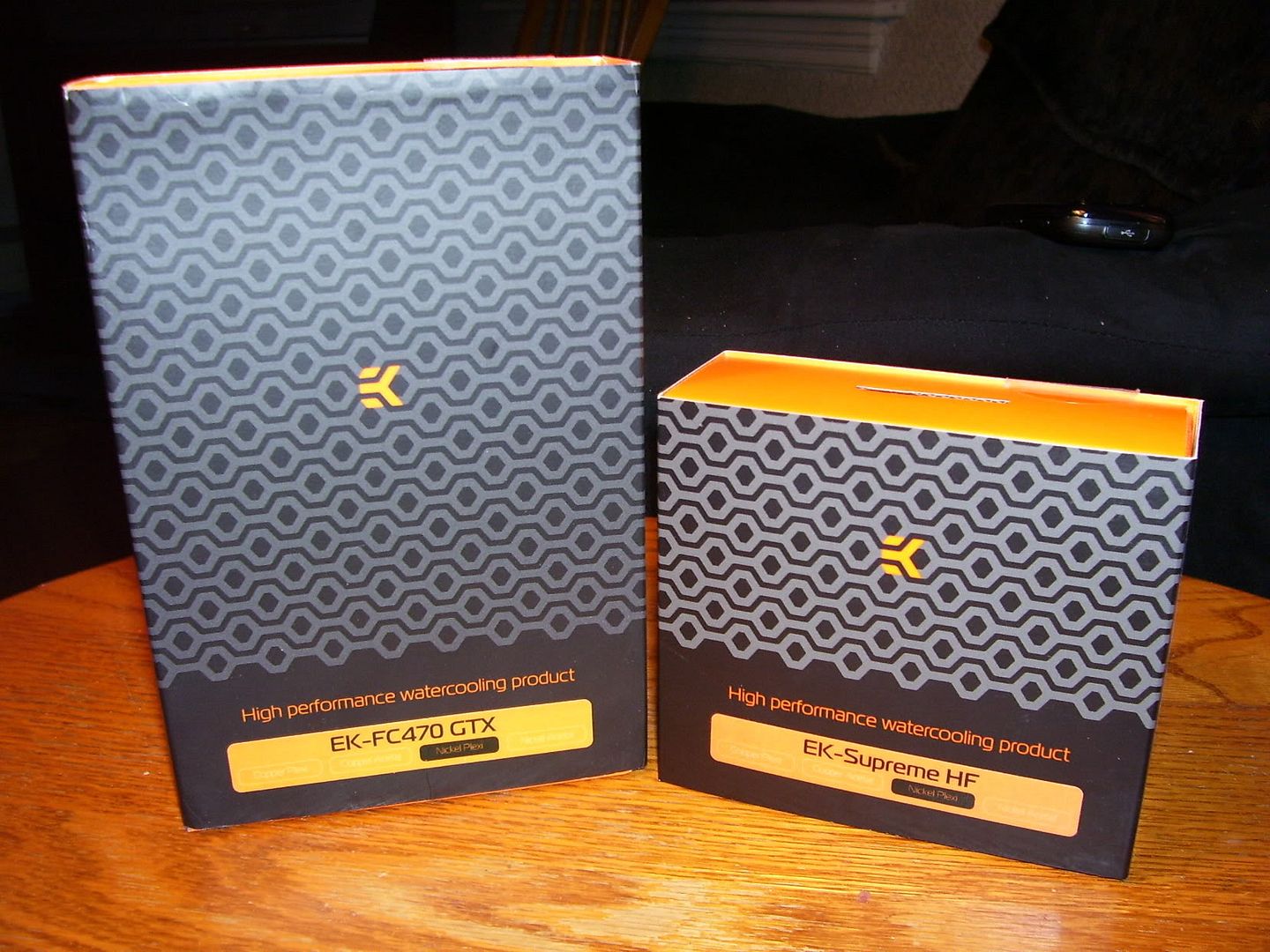
Anyway, quick update. Both the EK FC470 and the EK Supreme HF were received today in Amherst. Nick was nice enough to inspect the FC470 for cracks and to take pictures of the boxes side by side, so I could keep my lovely blog in the loop. Har har. Water cooling. Loop. Right. Onto the picture.


I really like EK's box design. modern, and good use of pattern to attract the eye. Very easy to see what the products are too. I cannot wait to get my hands on them on Friday.

In other news, everything else except for the stuff from Elwoodz has shipped. Elwoodz not shipping came to me as no surprise, he did let me know that he wouldn't be shipping until Tuesday due to post office renovations or something of that matter. I'm fairly certain that everything should be in Amherst by Friday though. The 2 NCIX orders are a guarantee as they were shipped by purolator, and Dazmode was shipped Xpresspost which should also be pretty much guaranteed, as they're slated for delivery on the 13th. I'm hoping and dreaming that the stuff from Elwoodz will be in by the 14th, as I'd love to have 2 radiators in my system.

So, Nick's build is coming up on the weekend. He'll be upgrading from:
AMD Athlon x2 4600+
2GB Crucial DDR2
Asus M2A-VM mATX motherboard

To:
Intel Core i5 750
Noctua NH-U12P
4GB Mushkin Silverline Stiletto DDR3
Gigabyte P55M-UD2

Overall the increase in performance should be pretty good, considering the drive he has in there now is a 150GB Velociraptor, and his 8800GT should hold him just fine until tax return time when he decides to upgrade to a GTX460 or something.

Anyway, I will be putting a post up about Nick's build with (hopefully) a lot of pictures. Will keep the blog updated with more pictures and eventually an entire build log!

-Jon

Since I won't be getting any sleep tonight...

May as well update the blog with more of an "overview" of what's going on with the water cooling project. So, let's start out with a total parts list.
1x Feser X-Changer 360 Radiator
1x Feser X-Changer 120 Radiator
1x Swiftech MCP355 w/ EK X-Top
1x Swiftech Micro Res Revision 2
1x EK Supreme HF Revision 2 CPU water block Nickel/Plexi
1x EK FC470 GTX 470 full cover GPU water block Nickel/Plexi
12x Bitspower 1/2" ID 3/4" OD silver compression fittings
11x Feser 1/2" ID 3/4" OD Nickel compression fittings
6x Feser 1/2" ID 3/4" OD Silver 45 degree rotary compression fittings
5x Feser Nickel 45 degree rotary adapters
1x Bitspower silver 90 degree rotary adapter
1x Bitspower Nickel 90 degree 1/2" rotary barb
10x Bitspower silver 1/2" barbs
7x Feser nickel 1/2" barbs
1x Enzotech nickel T adapter
1x Enzotech silver 10.5mm G1/4 threaded spacer
2x Swiftech fill/drain ports
2x Poly tees
16~ Feet of PrimoChill Primoflex LRT clear 1/2" ID 3/4" OD tubing

So, as we can see, there are a TON of fittings here. I shouldn't have any trouble getting things to fit properly with everything listed here. I'm still thinking I might grab that second Feser 360, and use it for a near-future project... Water cooled media PC/Server anyone? I really can't think of anything else to do with another radiator... Other than find a way to fit it into my main loop. But what I'm going to have is already overkill as is. Well, I'll know for sure if I'm going to take that radiator some time in the afternoon. Should have all of my cash by then.

In other news, Nick's board should be shipped out tomorrow via expedited or express parcel! Since it's coming from New Glasgow, it shouldn't take all that long. The weekend will be building Nick's machine, followed by stability testing it. He'll game, I'll see the girlfriend and my friends. Sunday, I'll gather up the plethora of components and my 72 kcups, and hit the road back to Truro.

I'll be sure to update throughout the week. Perhaps we'll even see a nice review of my Keurig B44.

Bed time now...

-Jon

Oh look, more money spent

Well hot damn, I'm just on a roll now.

So, I really couldn't pass it up, someone else from the Hardware Canucks Forums, his handle being Elwoodz, was selling some lovely water gear. So, I got away with some lovely components, that'll be listed below. I also made another order from Dazmode, and got a couple more fittings from NCIX as well. So, my parts that have been obtained over the past few days are as follows...
TFC X-Changer 120
2x Bitspower 1/2" silver compression fittings
11x Feser 1/2" Nickel compression fittings
6x Feser 1/2" 45 degree rotary compression fittings
1x Enzotech nickel T adapter
7x Feser Nickel 1/2" Barbs
3x Feser 45 degree rotary adapters

There's also a pretty good chance of grabbing a second X-changer 360, for 60 dollars shipped. I could pretty easily use this in a later build, and it'll be just nice to have around in case I get a larger case. Water cooled HTPC or what?

Here's hoping everything comes in by Friday.

-Jon

Update!

Woooh! That's two more items on the way. Both the EK Supreme HF and the EK FC470. Well, sort of anyway.

The EK Supreme HF was ordered from Dazmode and shipped the next day. Total cost was about 110, with regular shipping and taxes in. The Full cover GTX470 block is coming from another wonderful member of HWC, magictorch. Total is 85 dollars shipped, from Annapolis Valley at that! Everything should be in Amherst some time next week.

Pretty much coming to the end of the journey here. All that needs to be ordered is fittings, and I'm home free. Of course, if I really want to play games, there's a nice TFC X-Changer 120 for sale on HWC for 40 dollars... But I think I might just go with the fittings and call it a project.

Will update on status of the fittings soon!

-Jon

Boom!

Alright, back at the apartment, with some new gear!

Arriving back at the apartment, I was greeted with some nice new gear. Well, it was used stuff, but still new to me! 20 feet of clear Primochill PrimoFlex  LRT 1/2" inner diameter tubing, some angled fittings, a couple poly tees, a couple fill/drain ports, and of course, a Swiftech Micro Res! All these parts were, once again, from that nice fellow Rison from HWC forums. So, of course, me being impatient, I got to work, and eventually came up with this:


That pump has some pretty good power behind it for being so small... Then again, it was just shooting water through a radiator. Runs a little loud, but to be fair, it was on the table. When I picked the pump up, all I could really hear was the bubbles flowing. After this, I decided to remove the i5 and my Noctuas from my system and install the i7. This, of course, went just fine. The Noctuas were cleaned, and mounted to the radiator.


My god it looks imposing. It's going to be tight in the case, that's for sure. Pictured beside it is the Swiftech Micro Res. I have also decided on a mounting point for the reservoir. It will be mounted inside the drive bay, above the DVD drive with two strong pieces of velcro. It's a perfect fit, and it's just hidden from view. I can still check liquid levels if need be as well, by peering through the grills on the front.

Onto the i7. This thing was an easy install and boot, but it wasn't too much fun to get the overclock actually functioning. Most everything I tried ended in a boot loop with the post codes 6F or D4. Eventually I managed to get something working, and now I can post at whatever clock speed. Right now it's happily sitting at 3.8GHz with hyper threading enabled, at 1.26 volts. This is good enough for me. I believe 1.24 volts is what it dips to under load. I managed to prime at 4.05GHz, but the heat was a little too much for my poor NH-U12P, managing to hit 85 degrees within just a few minutes. Water cooling should let me really open up and push that little fucker till it screams.

So... A parts list for the water cooling!
TFC X-Changer 360 w/ 6x Noctua NF-P12s in Push/Pull configuration
Swiftech MCP355 w/ EK X-Top revision 2
Swiftech Micro Reservoir revision 2
EK Supreme HF revision 2 Plexi/Nickel CPU water block
EK 470 Full Cover Plexi/Nickel GPU water block
Primochill Primoflex LRT clear 1/2" ID tubing
Bitspower shining silver compression fittings x10
Bitspower black speckle T line x1
Bitspower shining silver barbs x8
Swiftech Fill/Drain port x2

I decided on going plexi/nickel for my blocks, because I managed to get a really good deal on the GTX470 block. Another nice person from the HWC forums is selling it to me for 85 dollars shipped, so I had to jump on it. I already ordered the CPU block too, so it should be in Amherst next week, along with the GPU block and my latest decision, the compression fittings. If you're doing it, you may as well do it right, right?
Also, here's what I ended up doing in Christmas morning with Nick...


As expected from the HAF series, this was a pleasure to build in, with lots of room. Will soon be housing my i5 and Noctua NH-U12P.

It's after 4 AM now, so I believe I'm going to be going to bed. GOODNIGHT!

-Jon

Hey look!

The i7 came in today! And I'm pretty sure I have a final parts list.

The i7 was really anti climactic. I won't post pictures, we all know what a processor looks like. Only exciting thing is it came a day earlier than expected.

I ended up getting some pretty sweet deals on tubing, some fittings, and a reservoir, so I changed from a bay reservoir to a Swiftech Micro Res. I also got 20 feet of 1/2" inner diameter clear Primochill tubing, and some random fittings (2 fillports, and 2 t lines). acquiring this dropped my total costs on my pay check in January to just my water blocks. Pretty sweet.

So, for my final parts list, it looks like I have the following....
TFC Xchanger 360 w/ 6x Noctua NF-P12 in push/pull configuration
Swiftech MCP355 w/ EK X-Top Revision 2
Swiftech Micro Res revision 2
EK Supreme HF acetal nickel revision 2
EK GTX 470 acetal nickel block
Primochill 1/2" clear tubing
Various fittings

I haven't decided if I'll be keeping the Bitspower barbs or moving to compression fittings. I might do a combination of the two, compressions for the visible stuff. Well, it's off to bed for Jon now, will update again soon!

-Jon

Pump is in!


Definitely a nice looking pump. Arrived on time, actually a day early. Didn't get it until the next day though. I like the looks. The previous owner included 1/2" barbs, and sleeved the power cable. This picture was taken after I changed the orientation of the outlet.

Also, the processor is in the mail, should be here by the end of the month! I managed to get it for ~$210 shipped, which is good enough. And all things considering, it does 3.8GHz at 1.24v with hyperthreading ON.

Will be sure to update more when more parts come in, and will have a few reviews up in the near future. (ereader, etc.)

-Jon

And so it begins...

And so it begins...

Yes, due to my holiday pay, I will be finally doing what I want to do, and water cooling. This, along with an upgrade to an i7 860.My i5 750 will be sold to my Brother, as he will be doing a build in January as well. I'll be more than likely documenting that too. As for now, I'm just going to chuck up a parts list.

TFC Xchanger 360 with 6x Noctua NF-P12s in push/pull configuration
Swiftech MCP355 w/ EK X-Top v. 2
XSPC single 5.25" bay reservoir
EK Supreme HF Acetal v.2 CPU water block
EK FC470 Acetal+Nickel GPU water block
Bitspower 1/2" High Flow True Silver Barbs
Feser black tubing

The radiator, barbs, and pump are all used products, the same with the i7 860. All other parts will be purchased new from Dazmode. I'm hoping to put the order in on the 7th of January, and I would hope to receive them by the next weekend. Of course, this is best case scenario. I may just have to pay for a more expedited service. If everything goes well, Nick will have ordered his parts on the 7th as well, and would expect them by the next weekend too. I'll bring home my i5 750 and the Noctua NH-U12P, which will be his. We'll build his system that weekend, then I'll take my parts home and start my water cooling build on that Sunday. Of course, I have a basic camera now too, so expect pictures!

The i7 860 should be a beast, as it seems to clock extraordinarily well. The previous owner managed 3.8GHz at 1.24v stable. This seems as though it's the perfect candidate for my loop. Very pleased.

I'm going to have some quick overviews of stuff up here that came about in the past month or two. I did get a couple things, and I'm very pleased with them. Stay tuned, and I will update soon.

PS: Still working on that SF-1200 install guide.

Whoa is me... I'm so whoa.

More upgrades? WHY YES!

It seems as though I have come across 5 more upgrades to my system, a new case, a new power supply, a sound card (AGAIN!), 4 more gigabytes of RAM, and a solid state drive! three of these aren’t really new, which isn’t overly great, but I can get over it, as they were stellar deals, and they weren’t abused. The other two were brand new, one being a gift, one being a purchase on a whim.

The first upgrade, I decided to make things a bit bigger, and I am now rocking my roommate’s HAF932. It’s a much bigger case, not exactly quieter, but more room to grow, and my components seem to run a bit cooler. I’ve replaced the rear 140mm fan with one of my NF-P12s, and the side 230mm fan with 4 of my remaining NF-P12s. I think they offer a lot more static pressure and airflow, and, most people would disagree, but I think they look nicer too. So, with this case, I’m now set up for just about anything, at least when compared to my CM690. Alas, the CM690 will be missed, but I can deal. After all, the HAF is just a better case.

The second little upgrade I did was a new power supply! I decided, since I have the 470, and I’ve already overclocked it ludicrously (more on that in a bit), I may as well have a better power supply than my aging FSP FX600-GLN. So, again, I make another upgrade through my roommate, A Corsair TX650. Sure, it isn’t modular, and it isn’t a huge upgrade wattage wise, but the power supply is much better built (Seasonic based I think?), and can handle much more than it’s rated output. It was basically a free upgrade, so it’ll hold me over until I decide to bite the bullet on the Strider 850w fully modular from Silverstone.

The third upgrade would be the used soundcard from my roommate as well. The HT Omega Striker 7.1 is a fairly highly regarded sound card, and I couldn’t be happier, especially at the price of 20 dollars. Having something to drive the Sennheisers properly is great, and, unlike the Asus Xonar DX, the drivers aren’t rubbish!

For my Birthday, Nick got me 4Gb of Corsair XMS3. What really surprised me was I didn’t have to increase vtt voltage on my processor. It was basically plug the RAM in, check it was recognized in the BIOS, then boot. I can now run tons of VMs and other applications at the same time, without having to budget my memory! Overall, really pleased. With a bit more voltage I might even be able to tighten the timings.

The final upgrade for this post is the SSD. I was considering a 3rd monitor, and although I would have gotten more usable desktop workspace out of it, the SSD ended up being a bit cheaper, and in the end the sheer performance gains from an SSD were much more appealing. The SSD I ended up going with was an OCZ Vertex 2 Extended, which is a sandforce based drive. They seem to be tops when compared to Samsung, Indilinx, and Intel controllers, with a 285Mbp/s peak read and a 275Mbp/s peak write. Averages depend on what’s being written/read though. It also supports TRIM, and has a couple Sandforce exclusive features such as Duraclass and Durawrite. The installation process was just a ton of fun. I spent a good week researching optimal install methods. I’m going to go over an SSD install and tweak guide in another post though, so I’ll leave that alone for now. The performance gained from that drive though is ridiculous. Boot times are about 17 seconds after post, and everything is usable as soon as boot is finished. It doesn’t take a couple seconds to open firefox, or load digsby, it’s just instant. Shut downs are done within 5 seconds. I love this thing.

Just a quick youtube video of 11 applications loading simultaneously.

OCZ Vertex 2 Extended 120Gb Opening 11 applications simultaneously.

I have the SSD configured as the boot and application drive, where my most used apps will be. The previous boot drive, the 640Gb Western Digital Black, is a multidrive/scratch disk basically. It holds music, non-installed software, literature, FRAPS footage and screenshots, the Photoshop scratch disk, less used programs, and, all of my user files. (This prevents unnecessary writes to the SSD). Finally, the 1Tb drive is dedicated to video. All of my movies and TV shows are on there.

That GTX470 is a tank. Stock clock speeds of 608/1215/1600, with a bump in core voltage to 1.087v, I managed to get it up to 825/1650/1900. It runs any current game I play with ease, and never sees more than 75 degrees on load. Oh, and idle temps? 35 degrees. Ridiculous. Frame rates? Well, Counter Strike Source at 1920x1080, all settings on high, and Anti Aliasing set to 16x QCSAA, I manage to push out an average frame rate of 210~. Bad company 2 skips along happily at full settings, no AA, average of 60-80FPS, and Borderlands doesn’t really drop past 100. Overall, very happy with that purchase.

So, keep your eyes out for an SSD install and tweak guide soon, along with some book reviews, but that’s just a quick update on the current state of the system.

-Jon

Amazing, right?

Long time no post? Don’t blame me, blame the schedule.

Bunch of things to cover since the last post, considering that was a while ago. Lots has happened since then, I passed my first year of college, finished my workterm with the school board, and even did some hardware upgrades too! We’ll start at the top.

First year went well, I had a blast. Work term was pretty good, I enjoyed my time at the school board, mad props to Adam, Rick, Martin, Jason, Dave, and Bruce. Lots of stuff learned there, and I got an extremely good reference from them. Mac repair is easier than most think, and they break a lot more than most people realize. Hell, they’re also fun to break, as I learned from the eMacs. Also, printers are the Devil’s spawn. Hard drive testing was a pretty alright time, and we banged out about 150 systems in just over a week. Pretty pro if you ask me. It was mind boggling how many systems we tore apart and moved around. From the moving alone, I actually gained muscle weight.

First week of my work term, I was just around the corner from the building, which of course didn’t last long. I’m now living in a 3 bedroom apartment in Bible Hill with 2 other Systems Administration students, and we’re having a good old time. Rent is great, it seems like a nice building, and we’re on the top floor, so it’s relatively quiet. So much more counter space in the kitchen too! Oh so happy. We have a server dedicated to Usenet, which was purchased not long ago, and we’re also streaming media from my desktop PC to the 360 on the new 32” LCD in the living room, and things are looking fabulous. 720P content looks fantastic, and 1080P is even more crisp. My god the place got hot in the summer though. The only thing saving me was the box fan  that I kept on at max speed in the window, and even then I couldn’t game until night time when the temperature dropped considerably. Of course, this hot week only took place during the last week of summer. I spent my entire summer working in Amherst, and just recently got back to the place at the end of August. I’m still in between Amherst and Truro occasionally due to a certain interest.

Hardware upgrades have been fun! I’ve done 2 major upgrades in the past little while, the first being an MSI GTX470! It’s really a GTX465 Twin Frozr II Gold Edition, number 1761, but, since the cards they sent were just BIOS crippled GTX470s, NCIX hand flashed all of the cards with the 470 BIOS and sold them at the same price as the 465. I didn’t actually purchase mine, but a friend did. I ended up trading him a bit of cash and my GTX275 for this powerful beast of a card. Did I mention the solid copper heatsink and dual fans? Just wait till I get a new power supply and start overclocking it. Oh, and more RAM? Yes please! I can run just about all of my games at max settings, and I haven’t been happier. Borderlands is almost a constant 62FPS, Bad Company 2 averages over 60FPS, and Counter Strike Source runs at a steady 120-140FPS with 16x QCSAA. I’ll be testing other titles over the next little while too!

The second major upgrade was stepping away from my netbook and into something a bit more awesome. I’ve had my eyes on the Acer Aspire Timeline series for a while, but they never released a model with a discreet GPU. That is, never, until a couple months ago when they released the Timeline X series. I ended up walking into Staples and seeing this particular model I’m using now for 699, regularly 799. I couldn’t help myself. I needed to buy it. So, now I am in posession of an Acer Aspire Timeline X 3820TG-3022. It’s a 13.3” notebook, with a Core i5 430M, 4Gb of DDR3, an 500Gb hard drive, and, get this, switchable graphics. It can go between a Radeon HD5470 mobile and the Intel integrated graphics depending on what you need. The 512Mb HD5470 Is plenty enough to play Source based games, and even Battlefield 2 or 2142, and might even be able to show a bit of muscle when it comes to even newer titles. Keyboard seems really nice, the build quality is really good with no keyboard flex or squeaking. The case of the laptop is mainly brushed aluminum with some plastic accents, like the frame around the screen, and around the keyboard. Battery life on this little notebook is AMAZING, I looked at easily running it for 7 hours of light browsing and chatting yesterday on the Intel integrated graphics, and today, it spent 3 and a half hours on the battery in the computer lab doing some heavier multitasking (Server 2003 virtualization, heavy web browsing, heavy downloading, chatting, etc), with another hour and a half remaining on the battery right now at 22%. That’s not even taking into account the 5% reserve battery. This is basically my dream notebook. The only thing I would change about this right now is the finish. The thing is a fingerprint magnet! Also, I would have loved to get the version with the HD5670. That thing would have played some of the newer titles well. Overall though, very please with this purchase, and considering a 9 cell battery for a gift to myself for Christmas. 9 cell battery with 6 cell backup? I’m set!

If I could sum up the year so far in one word? LEGENDARY.

-Jon